
⏸ Pause
The bot stops pressing anything at once and lets go of the pad. The game keeps going: a match is not paused in FC, it plays on. Now you can play the match yourself or move around the menus, with Take control or your own controller.
App guide
FutFriend looks the same on Mac and Windows: one window, with your consoles on the left, the PS5's live picture in the middle and the settings of the chosen mode on the right. This guide goes through it button by button: what each one does and what the bot does when you press it.
Everything happens in one window. The numbers on the picture match the list below it.
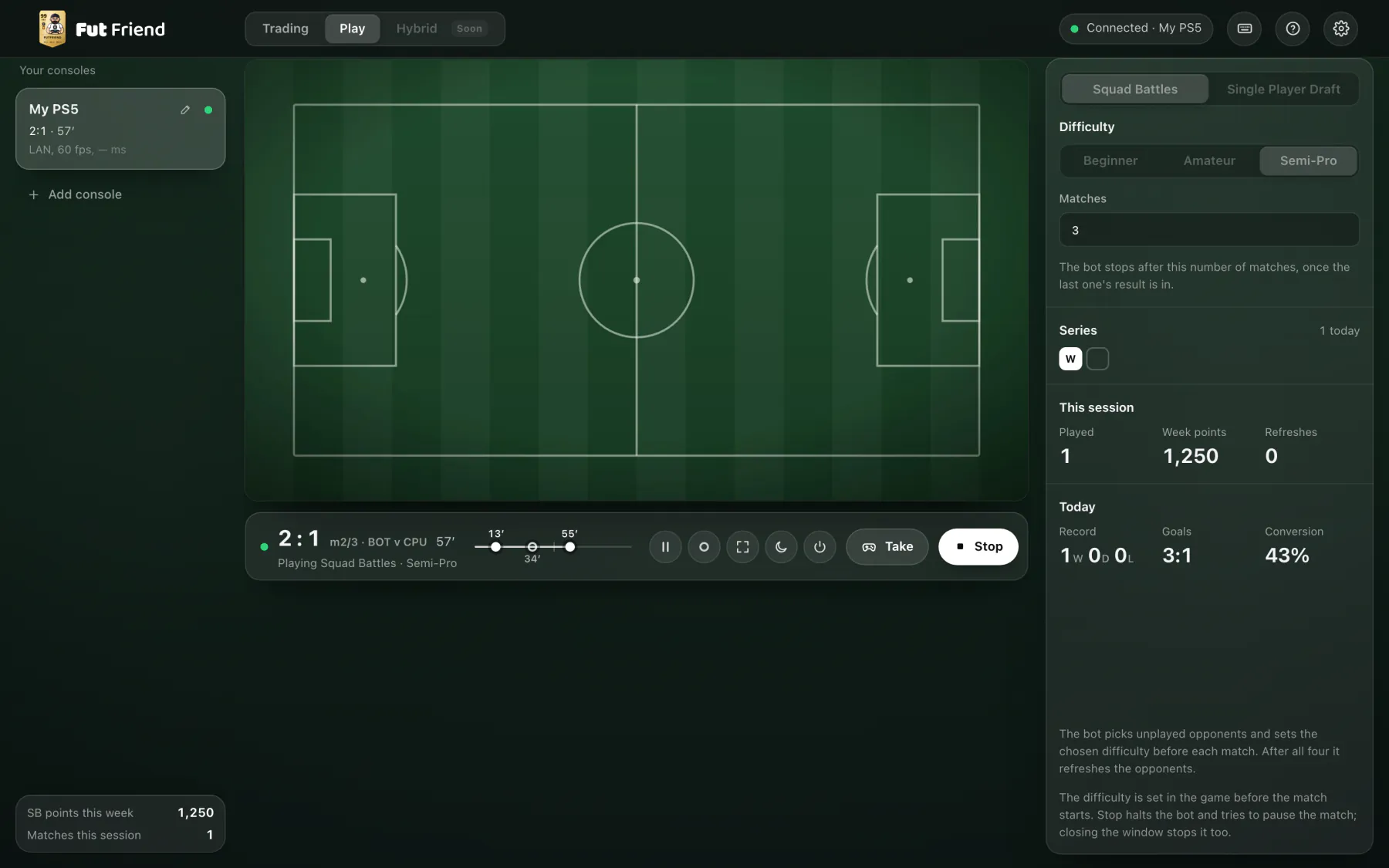
The app's sections. Play runs Squad Battles and Single Player Draft, Trading works the transfer market. Hybrid is greyed out: it comes later.
Which console the window is connected to: Connected · My PS5, Connecting · My PS5 or Disconnected · choose a console.
Show the controls (the on-screen pad), the list of pad keys and Settings. Explained just below.
A card for the console: its name, a dot for its state and what it is doing (2:1 · 57′ in a match, Working while trading, Idle, Offline). While it streams: LAN or PSN and the frame rate.
On Play: the Squad Battles points of the week and the matches played this session (Draft: the matches only). On Trading: the net profit, cards bought and sold.
What the PS5 shows right now, over Remote Play. Messages about the connection appear on top of it.
What the bot is doing. In a match: the score, the match number, the minute and the goals on a timeline. On the right: the round buttons, Take control and Play / Stop.
The settings of the section and its results: mode, difficulty and number of matches on Play; the card, prices and search method on Trading.
The first time you open FutFriend, the window starts with Set up FutFriend: three steps, once on this computer. The setup guide on the main page shows the same steps with pictures from the PS5.
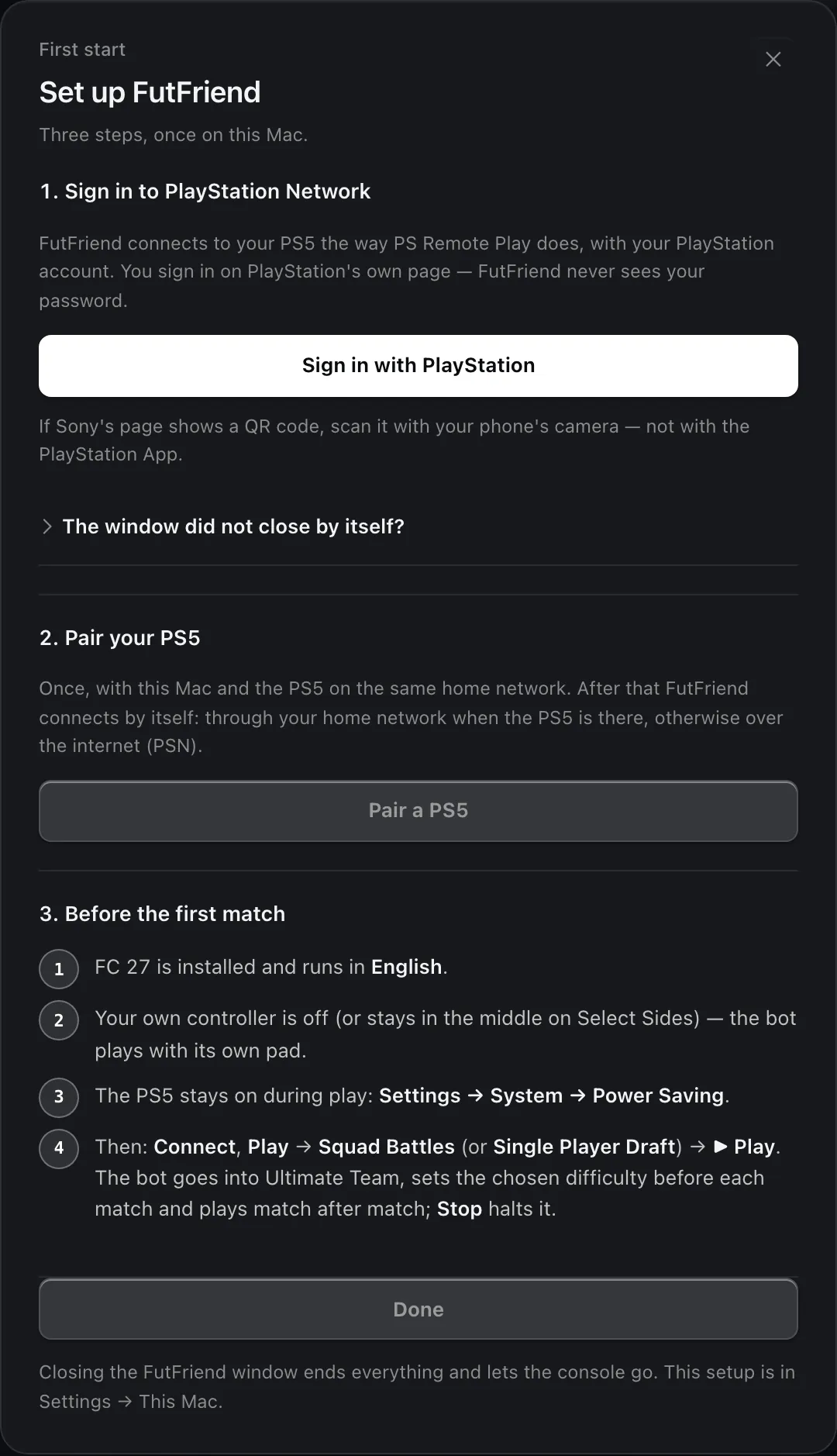
Sign in with PlayStation opens PlayStation's own sign-in page; FutFriend never sees your password. If the page shows a QR code, scan it with your phone's camera, not with the PlayStation App. If the sign-in window stays open after you sign in, open The window did not close by itself?, paste the address the window ended on (it starts with https://remoteplay.dl.playstation.net/remoteplay/redirect) and click Use this address.
Pair a PS5 pairs your console once with the 8-digit code from its screen. It works after signing in. See Add a console.
FC 27 installed and in English, your own controller off, the PS5 set not to sleep during play.
Closes the setup. You can open it again any time: Settings › This Mac (This PC on Windows) › PlayStation sign-in and consoles. There you can also sign in with another account.
Before the bot can do anything, the window has to stream your PS5. Pick the console and click Connect.
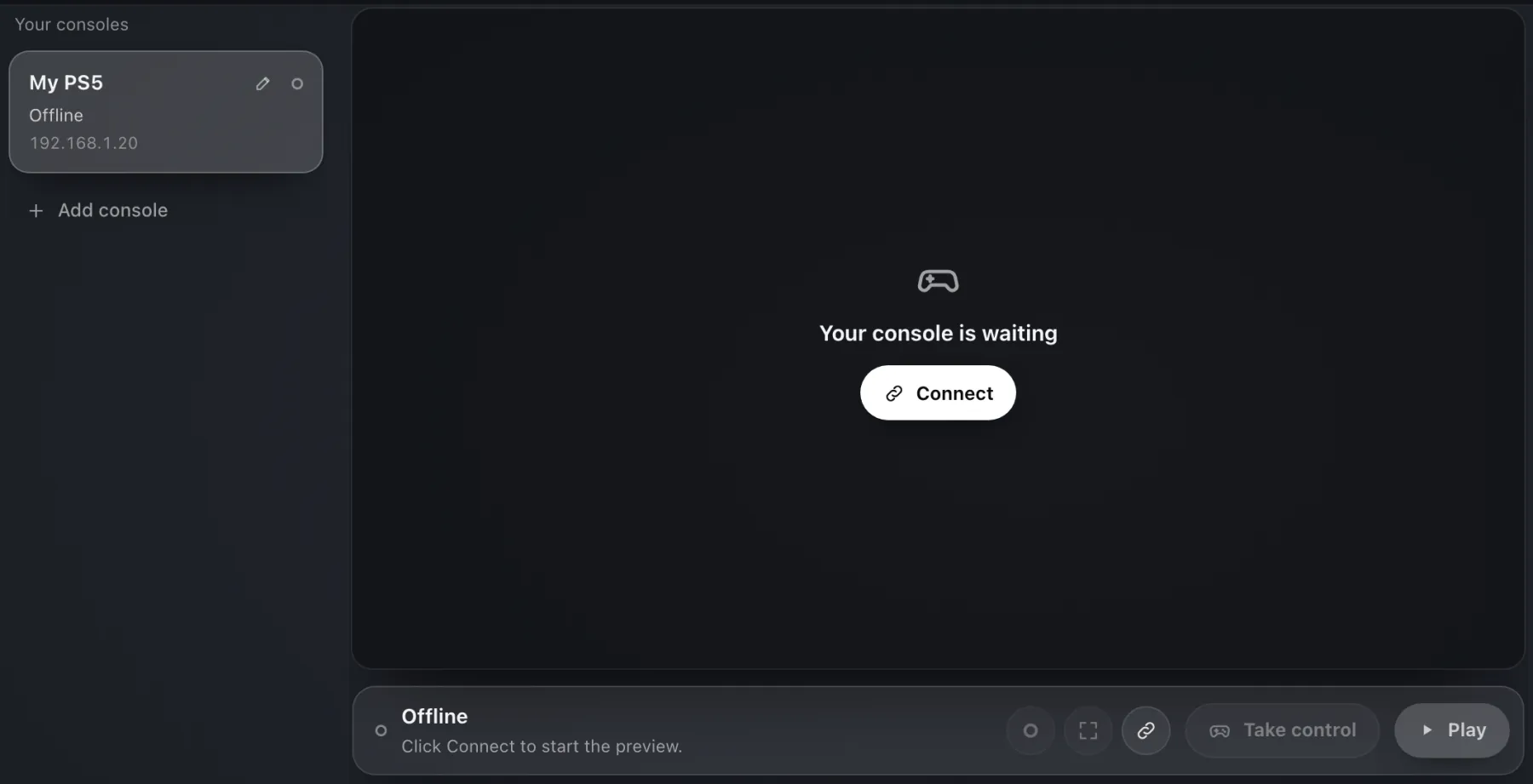
The console this window controls, with its state: Offline, Connecting, Live or Rest mode. While it is not connected it shows the console's network address.
Your paired consoles. Use this console switches to another one (while connected it asks first, because it disconnects the current one), Name renames it in the app only, and Forget the saved profile code deletes the remembered PS5 passcode.
Pairs another PS5. See Add a console below.
Starts the stream. On the same home network FutFriend connects over the LAN in a few seconds; anywhere else it goes over the internet (PSN), which can take about a minute. A PS5 in rest mode is woken up first.
The same, from the control bar. While a connection is on, this button becomes ⏻: Disconnect, or Cancel connecting while it is still connecting.

Do this once where the PS5 is, with the computer on the same network. On the PS5 open Settings › System › Remote Play › Link Device: it shows an 8-digit code.
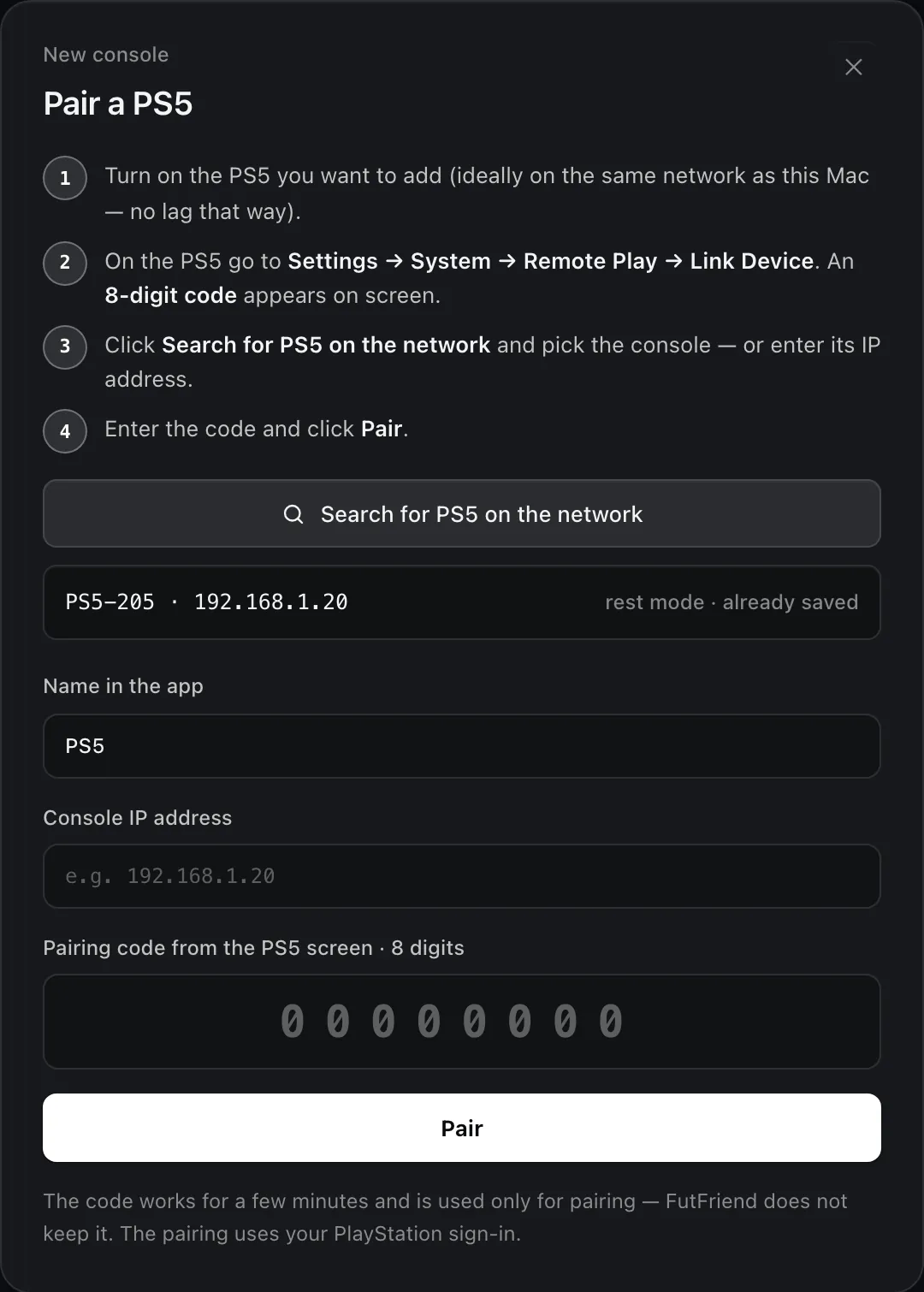
Finds the consoles on your network.
Click yours. It also says whether it is on or in rest mode, and whether it is already saved.
What the console is called in FutFriend.
If the search does not find it, type its address (PS5: Settings › Network › Connection Status).
The 8 digits from the PS5 screen. The code works for a few minutes and FutFriend does not keep it.
Pairs the console with your PlayStation sign-in. It is then selected in the list: click Connect.
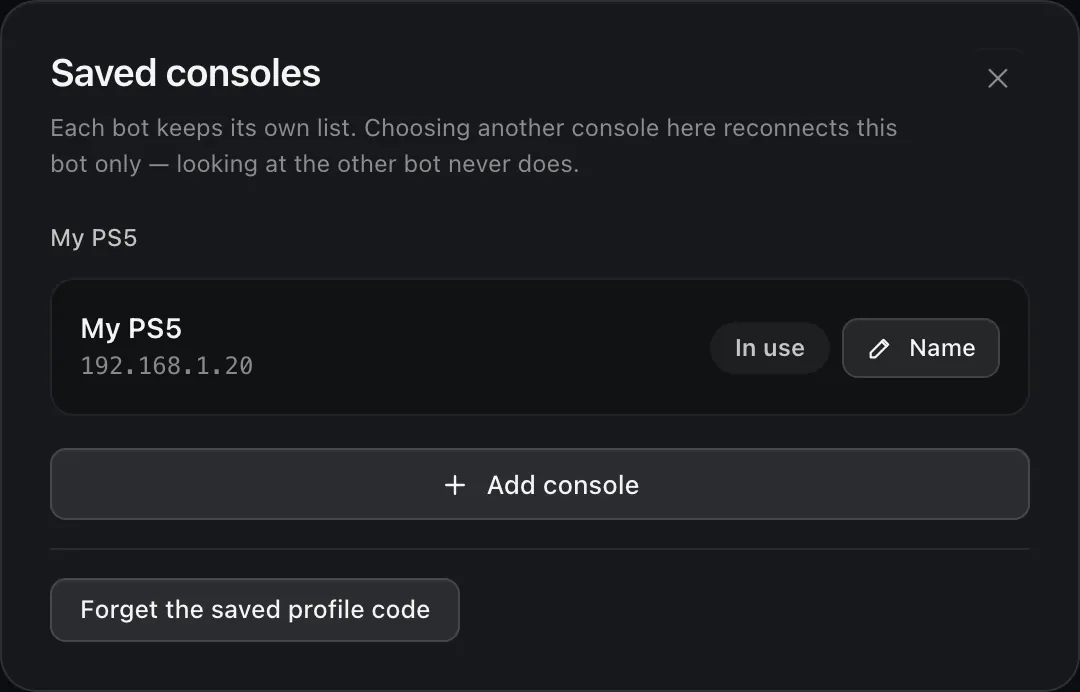
The console this window uses. With more than one paired, Use this console switches; while connected it asks Switch console first.
Renames the console in the app. The name on the PS5 stays the same.
Opens Pair a PS5.
Deletes the PS5 passcode this computer remembers. The PS5 asks for it again at the next sign-in.
If your PS5 profile has a passcode, the PS5 asks for it when FutFriend signs in. The app then shows a keypad that matches the PS5's passcode screen.
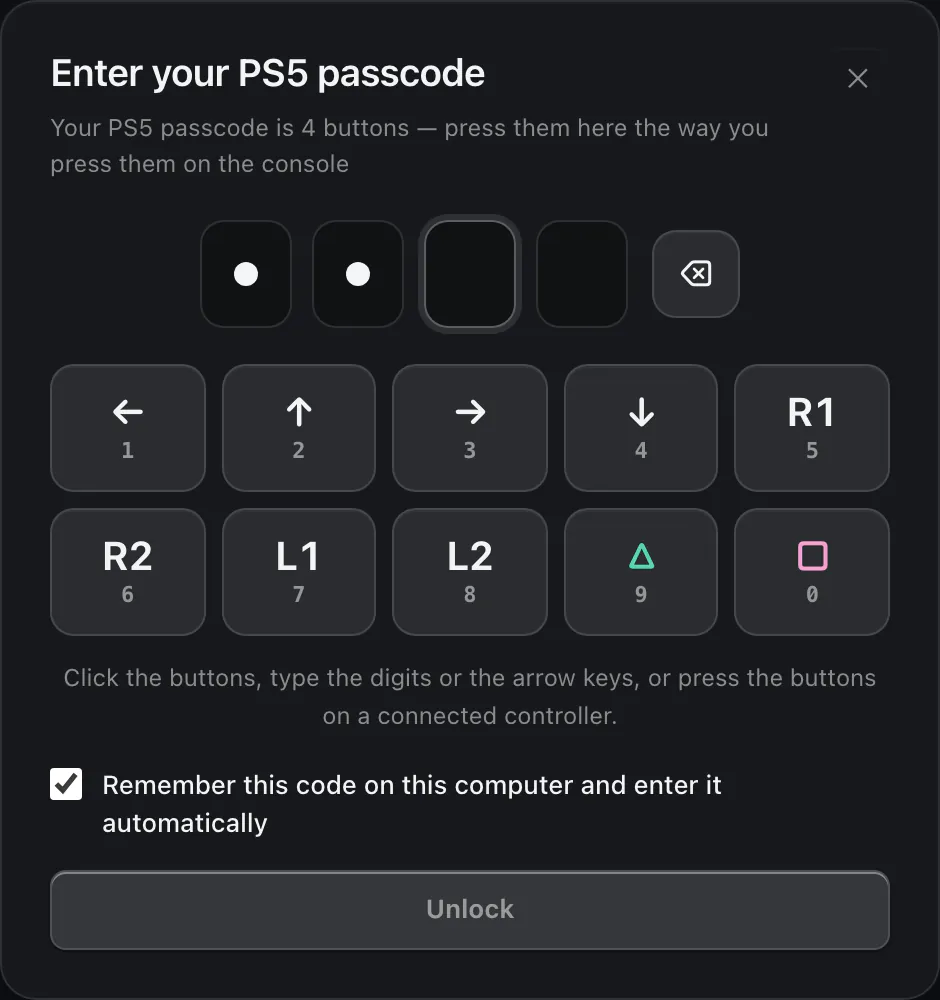
A dot for each button pressed. The code itself is never shown.
Deletes the last button.
Your passcode is 4 buttons. Press them here the way you press them on the console: ← 1, ↑ 2, → 3, ↓ 4, R1 5, R2 6, L1 7, L2 8, △ 9, □ 0. You can also type the digits or the arrow keys, or press the buttons on a controller connected to the computer.
Ticked by default. FutFriend keeps the code only once the PS5 has accepted it, and from then on enters it by itself. Delete it with Forget the saved profile code in Saved consoles.
Sends the code (Enter does the same). A wrong one: Code rejected — check the profile code.
Closes the keypad. The amber row The PS5 asks for the profile code above the bar has an Enter code button that opens it again.
Under the picture sits the control bar: what the bot is doing, a row of round buttons, Take control and the main button of the section.

In a match: the score, the match number (m2/3 is the second of three), BOT v CPU and the minute. The line under it says what the bot is doing.
The match from kick-off to full time. Filled dots are the bot's goals, hollow ones the CPU's; the tick in the middle is half-time.
Pause, record, full screen, sleep and connection. One by one below.
You steer the PS5 yourself. In a narrow window it is shortened to Take. See Taking control.
The main button: ▶ Play on the Play tab, ▶ Start on Trading, and ■ Stop while it runs.
Record and full screen need a live picture; the sleep button shows only while the console streams. A greyed-out button can't be used right now. Hover over any button to see its name.
Pause is for stepping in for a moment without ending anything. Resume lets the bot carry on from wherever the game is.

For example Paused · the bot let go of the pad — the match goes on.
Paused · Squad Battles, Paused · Draft or Paused · Trading.
The amber ▶. It needs the console connected.
The bot stops pressing anything at once and lets go of the pad. The game keeps going: a match is not paused in FC, it plays on. Now you can play the match yourself or move around the menus, with Take control or your own controller.
The bot carries on from wherever the game is now. In the menus it finds its way back on its own. In a match it pauses for a moment to check the teams and the score, resumes the match and takes it over. Trading goes on with the same session: the same card and counts. The session's time keeps running while paused.
Take control lets you drive the PS5 from the computer: with the on-screen pad, the keyboard or a controller connected to the computer.
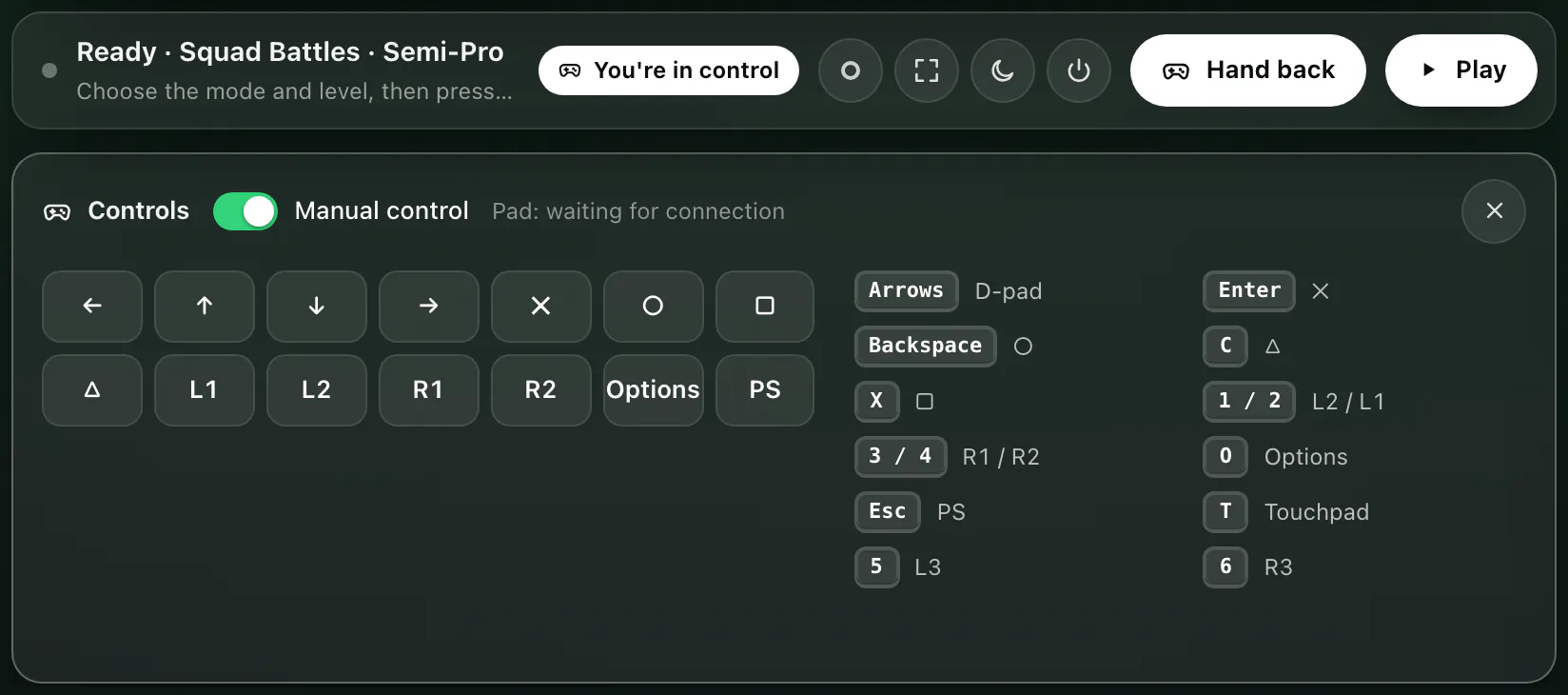
Shown in the bar and on the picture while you steer.
Ends manual control.
The same switch as Take control / Hand back, in the Controls panel. Next to it: the controller the app sees, for example Pad: waiting for connection.
Click or hold: the arrows (D-pad), ✕ ○ □ △, L1, L2, R1, R2, Options and PS.
Keys that work as PS5 buttons, only while manual control is on. The full list is below.
Closes the Controls panel and ends manual control.
The first button you press takes over from the bot. Trading or the running mode stops (Manual control took over), a match keeps going with you, and nothing restarts by itself after a dropped connection. When you are done, Hand back and press ▶ Play or Start again. To step in for a moment and let the bot carry on afterwards, press ⏸ Pause first, then Take control, then ▶ Resume: Resume hands control back to the bot by itself.
| Key | PS5 button |
|---|---|
| ← ↑ ↓ → | D-pad |
| Enter | ✕ |
| Backspace | ○ |
| C | △ |
| X | □ |
| 1 / 2 | L2 / L1 |
| 3 / 4 | R1 / R2 |
| 5 / 6 | L3 / R3 |
| O | Options |
| T | Touchpad |
| Esc | PS |
A controller plugged into the computer, by cable or Bluetooth, steers too while manual control is on. When the app sees it, the Controls panel shows its name.
Two ways to let the console go. ☾ Put the console to sleep puts the PS5 into rest mode. ⏻ Disconnect only ends the stream; the PS5 stays on.
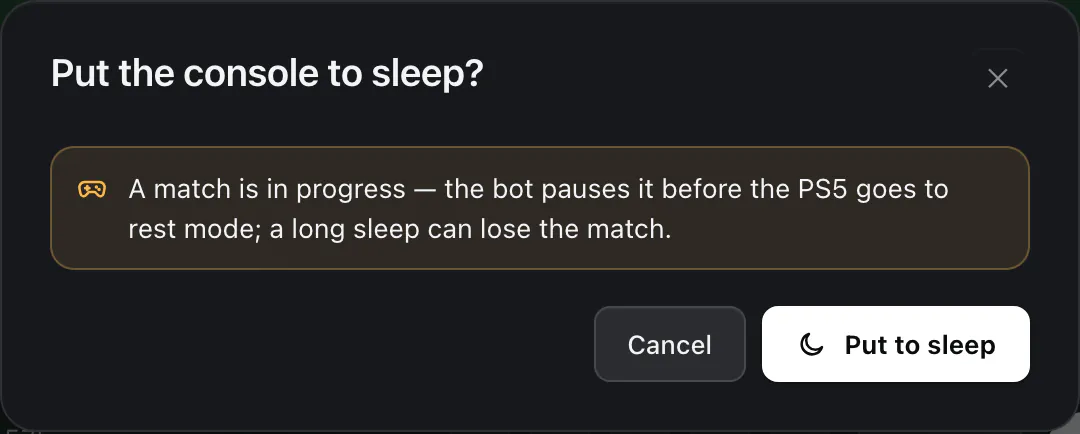
A line for everything that is running: a match (the bot pauses it before the PS5 goes to sleep; a long sleep can lose the match), the way to a match, trading (it stops after the current step) or a recording (it is saved and stopped).
Nothing happens.
Goes ahead. When nothing is running, the button doesn't ask at all.
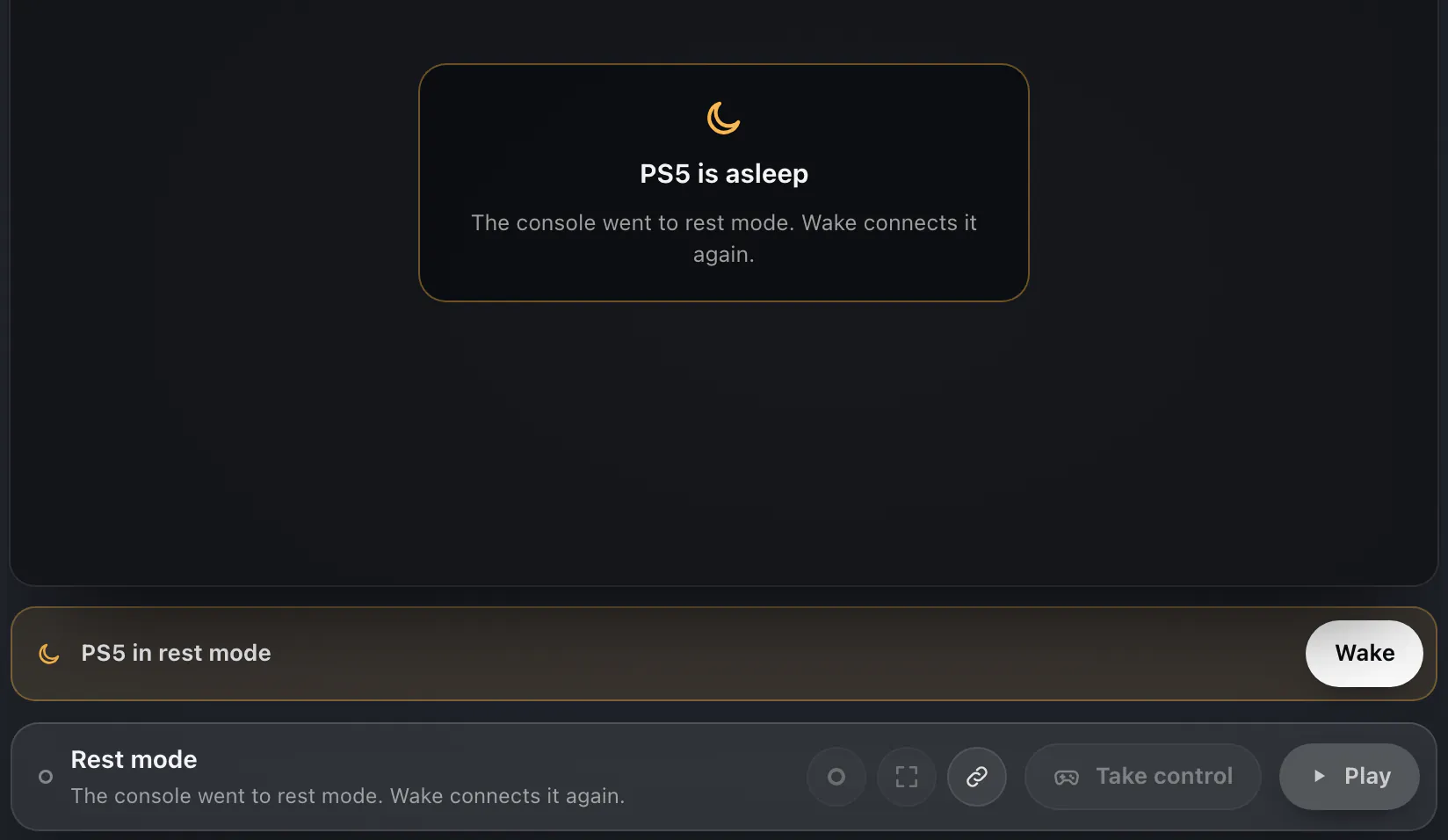
The console is in rest mode and the app has let it go.
Wakes the PS5 and connects again.
Does the same from the bar. Waking needs the PS5 to stay connected to the internet in rest mode (setup guide, Keep the PS5 reachable).

Asked when you click ⏻ while the console streams. It goes away after a few seconds if you don't answer.
Stays connected.
Ends the stream. Trading and the running mode stop, and nothing resumes by itself.
In a match, press ■ Stop before you disconnect. Stop pauses the match in FC. Disconnect alone doesn't pause it: the match would play on with nobody on the pad. ☾ Put the console to sleep pauses it for you.
The Play tab plays Ultimate Team matches against the CPU. Choose the mode, the difficulty and how many matches, then click ▶ Play in the bar.
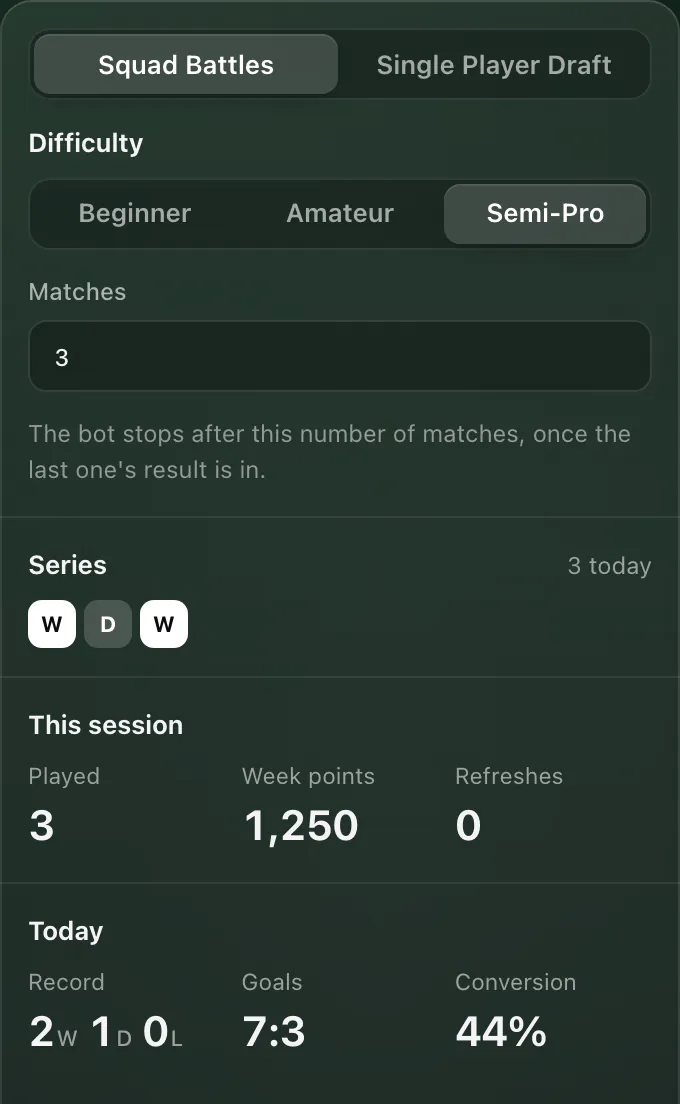
Squad Battles or Single Player Draft.
Beginner, Amateur or Semi-Pro. The bot sets it in the game before every match.
How many matches to play, 1 to 99. The bot stops after the last one, once its result is in.
Today's matches as squares: W win, D draw, L loss. An empty square is the match being played.
Matches played since ▶ Play, the week's Squad Battles points and how many times the bot refreshed the opponents.
Wins, draws and losses, goals, and the share of shots that went in.
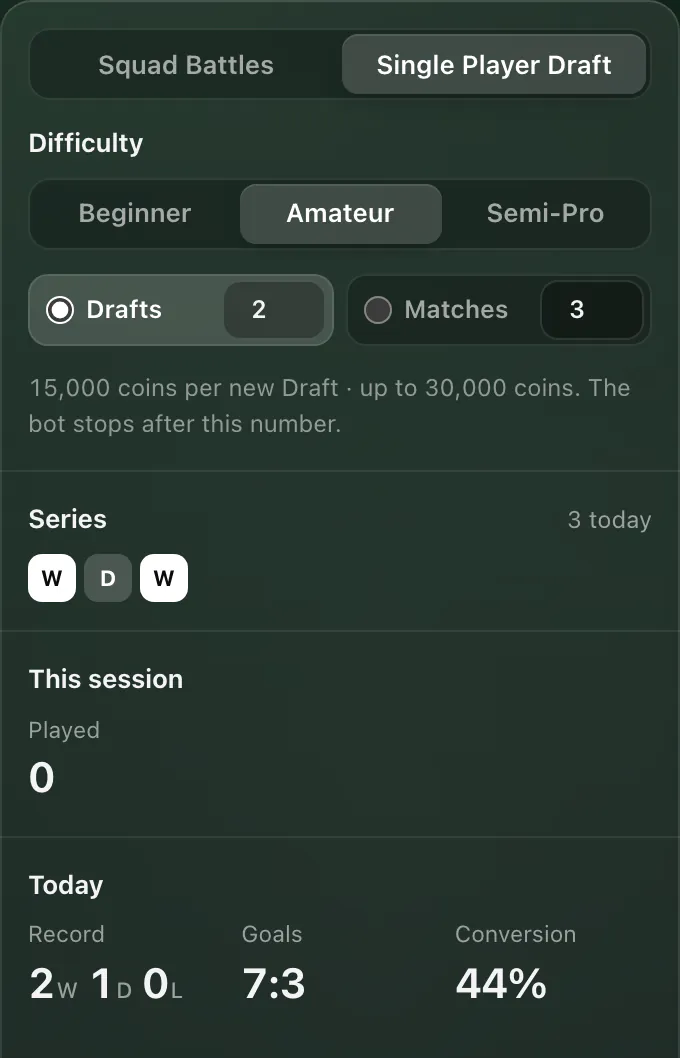
The bot enters a Draft, completes the squad, plays its matches and claims the rewards.
Chosen when a new Draft is entered. A Draft that is already running keeps its own.
Drafts (1 to 20) or Matches (1 to 99): the bot stops after that many Drafts or matches.
Every new Draft costs 15,000 coins; the note shows the most it can spend. In this beta the Draft is paid with coins only, and an entry is never paid twice.
The bot starts FC 27 if needed, goes into Ultimate Team and the chosen mode from whatever screen the game is on, sets the difficulty and plays match after match. In Squad Battles it picks opponents you haven't played and refreshes them after all four. Play works when the console is connected and nothing else runs: no trading, no recording.
Stops the bot. A Squad Battles or Draft match that is running is paused in FC, never quit. The next ▶ Play picks it up with Resume Match, plays it to the end and counts it.
Trading searches the transfer market for one card, buys it at your limit and lists it for sale. Choose the card and the prices in the panel on the right, then click ▶ Start.
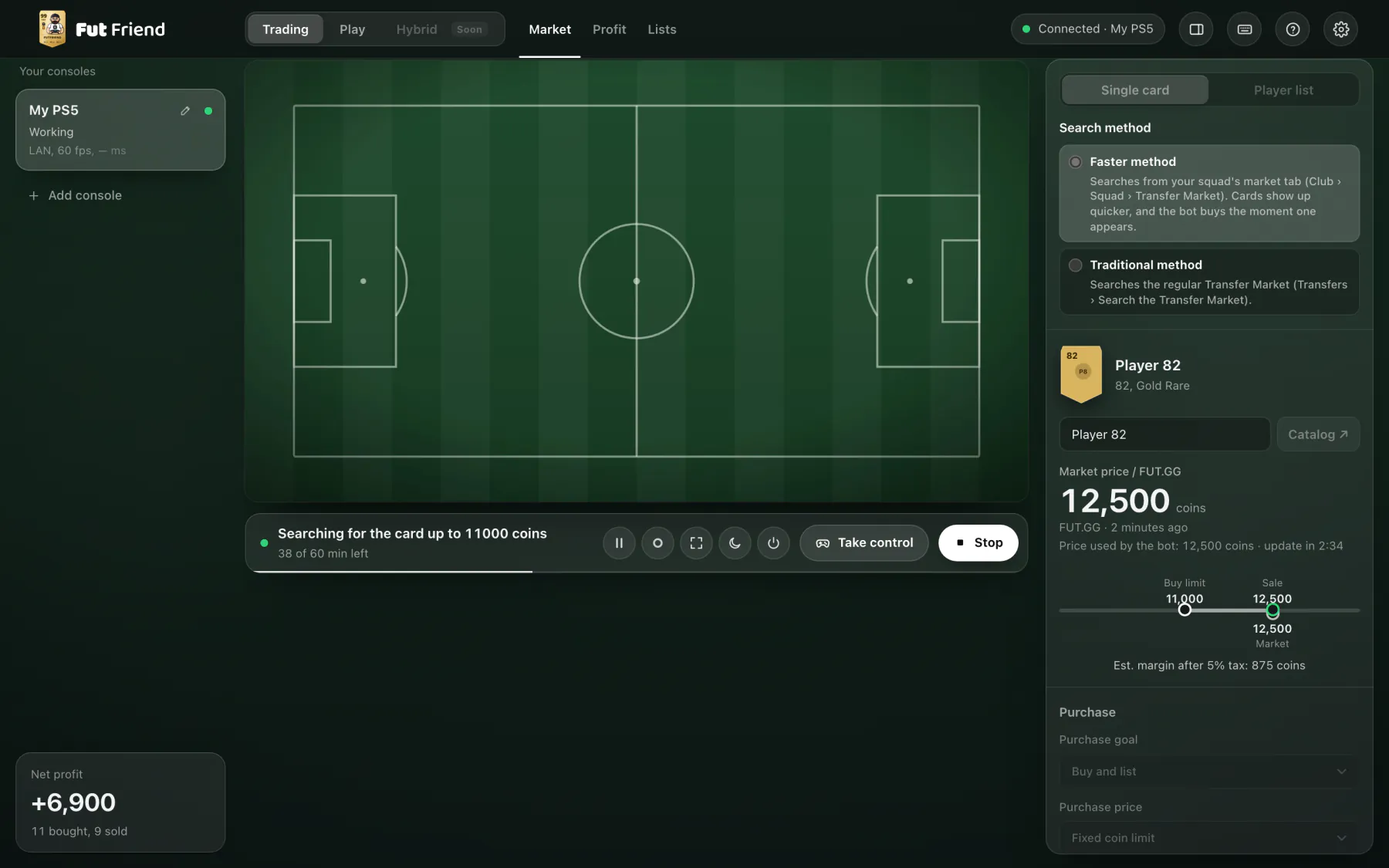
Trading's tabs: the live view with its panel, the profit, and the player lists.
For example Searching for the card up to 11000 coins, and below it the time left of the session.
How much of the session has passed.
Ends the session (▶ Start when nothing runs).
The card the bot is trading.
The FUT.GG price and its age, and the price the bot works with, refreshed every few minutes.
Your buy limit, the market price and your sale price on one line, with the margin after EA's 5% tax.
All your trading so far: the profit, cards bought and sold.
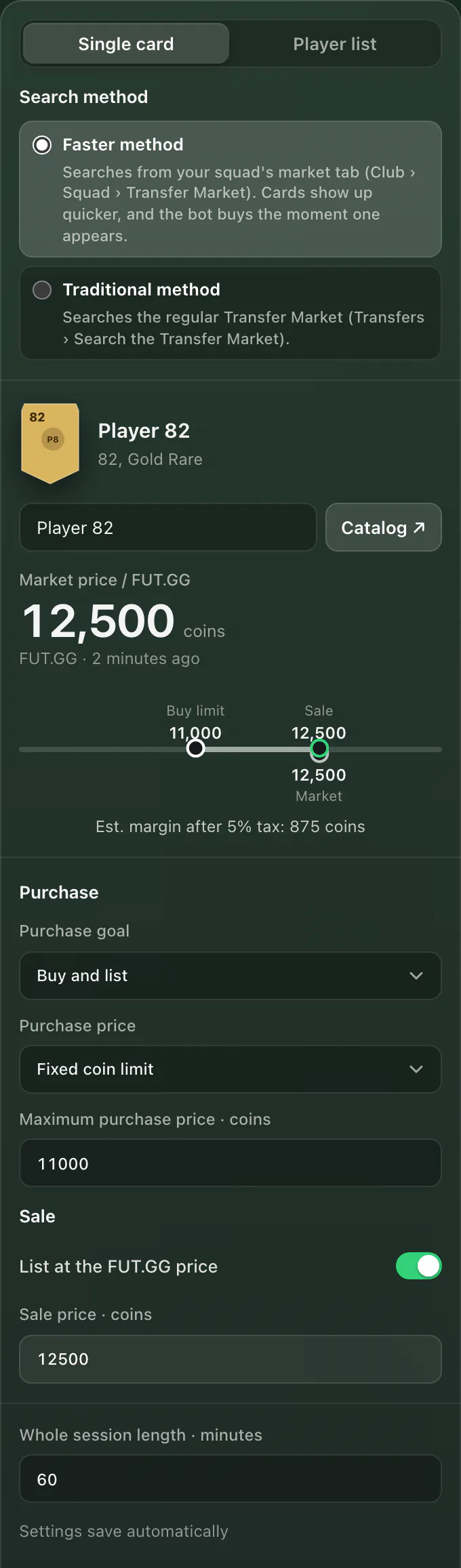
Trade one card, or let the bot take turns with the cards of a saved list (player lists).
Faster method: “Searches from your squad's market tab (Club › Squad › Transfer Market). Cards show up quicker, and the bot buys the moment one appears.” Traditional method: “Searches the regular Transfer Market (Transfers › Search the Transfer Market).”
The card you chose: rating and version.
Type at least 2 letters of the player's name and click Catalog. The FUT.GG catalog opens in a window: click the exact version of the card you want.
The card's FUT.GG price and how old it is. If the price gets too old, the bot waits for a fresh one before it searches on.
Drag the Buy limit or Sale marker to change them.
Buy and list: buys and puts the card up for sale. Buy for club: buys one card for your club, lists nothing and ends the session.
Fixed coin limit, or Percent below FUT.GG: then you set Buy cheaper by · % and the app shows the limit it works out (Limit at Start: … coins).
The most the bot pays for the card.
On: the sale price follows FUT.GG. Off: you type your own.
The Buy Now price of the listing.
How long the session lasts, breaks included (1 to 720). Everything in the panel saves by itself.
Trading › Profit counts only confirmed purchases and sales. A card's profit is added once its sale is confirmed, after EA's 5% tax.
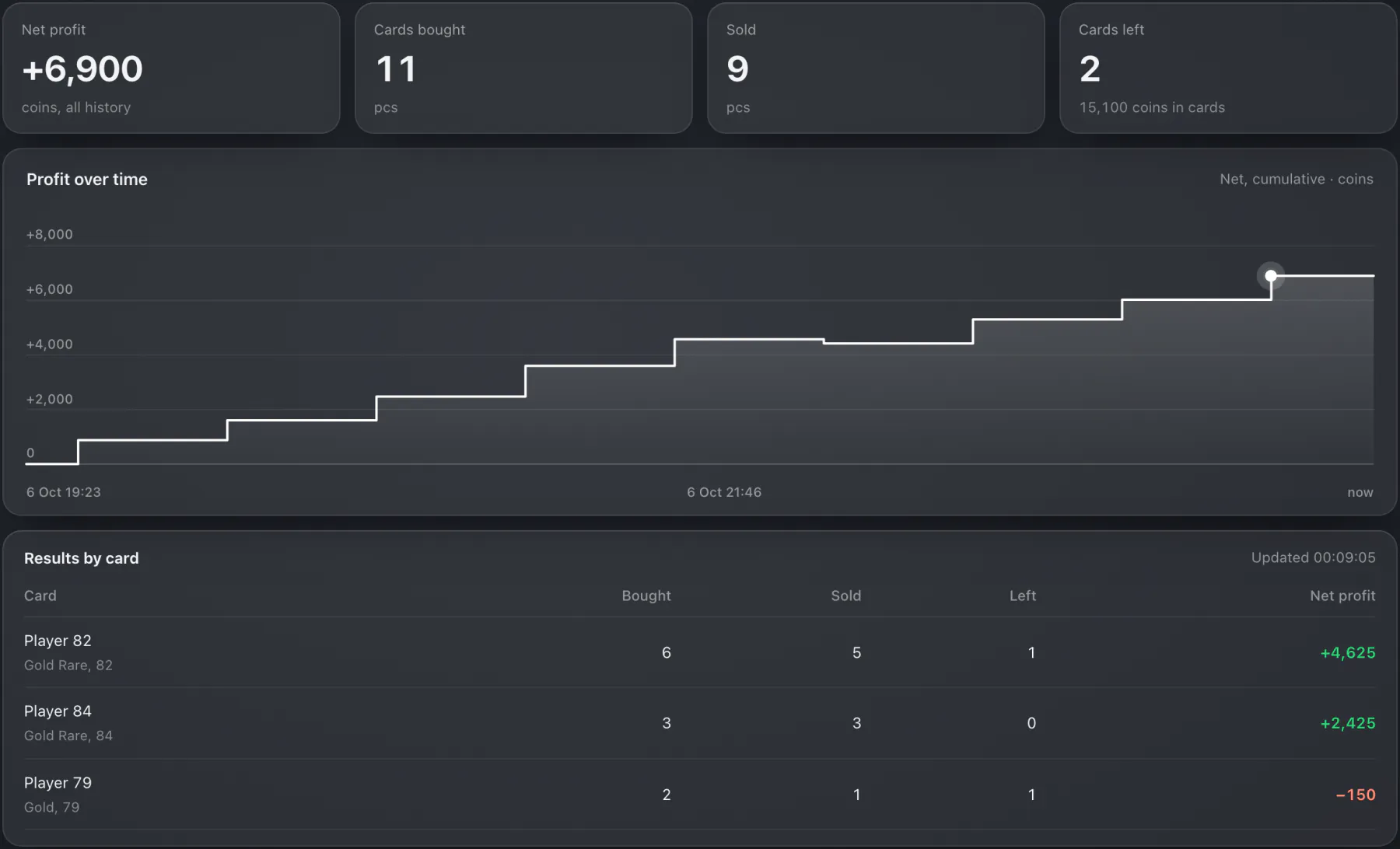
Net profit of all your trading, cards bought, cards sold, and cards still listed with what they cost.
The running total, one step per sale. Point at the chart to see each sale.
Bought, sold, left and net profit for every card.
Trading › Lists keeps lists of cards. With Player list chosen on the Market tab, the bot takes turns with the list's switched-on cards: a random pick weighted by each card's weight, a series of searches per card, and a cooldown before the same card comes back.
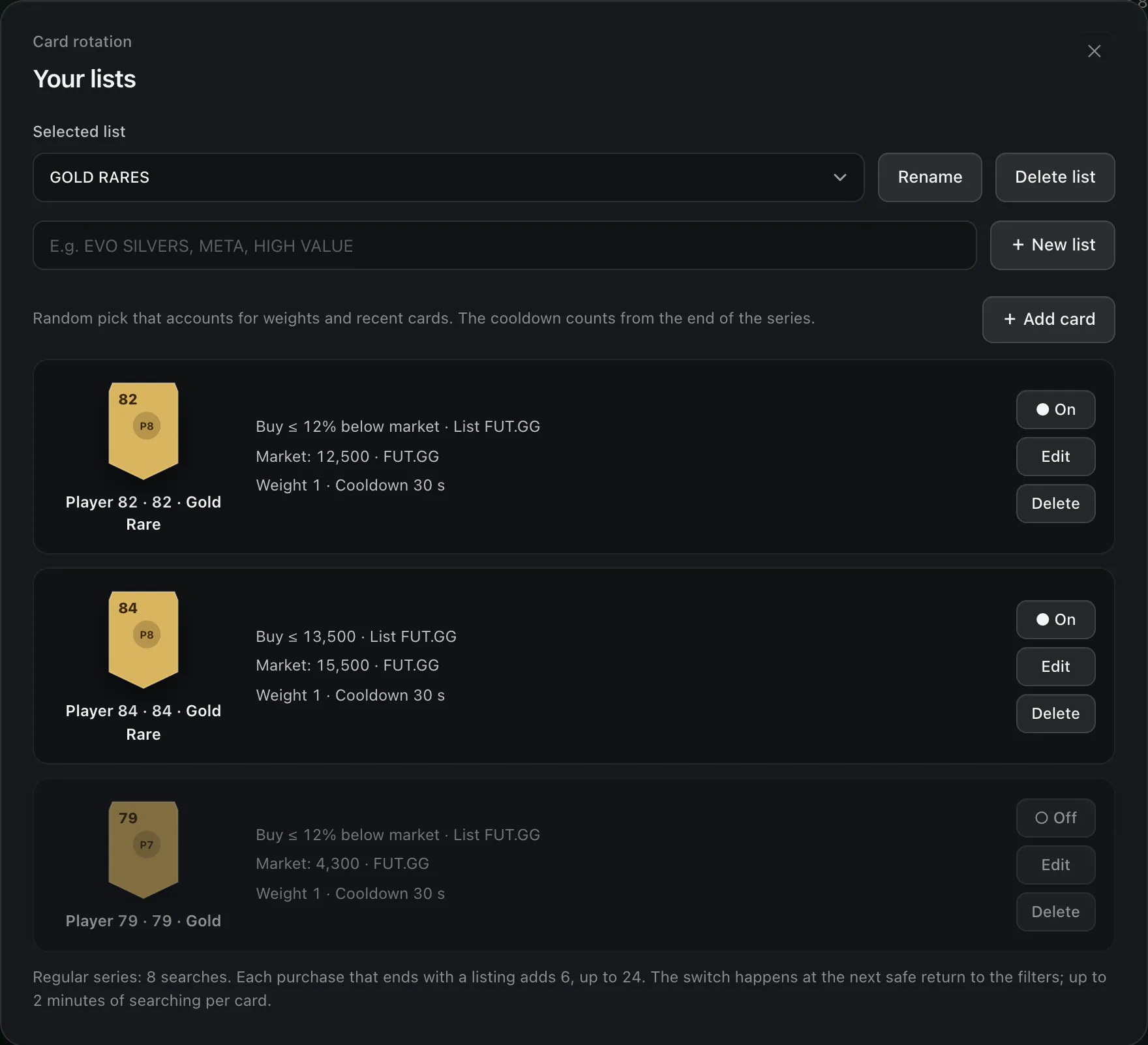
The list you are editing.
Delete list asks first and removes its cards too.
Type a name and click + New list.
Find the player (Catalog, or Use the card from the preview), then set the purchase (a percent below the market or a fixed limit), the sale (the FUT.GG price or your own) and, under Extra options, the market price source, the draw weight and the cooldown. Save card.
Switch a card on or off for the rotation, change it, or remove it.
Lists can't be changed while the bot works: Stop and edit stops it first.
If the connection to the PS5 drops while the bot is trading or playing, FutFriend reconnects and carries on by itself.
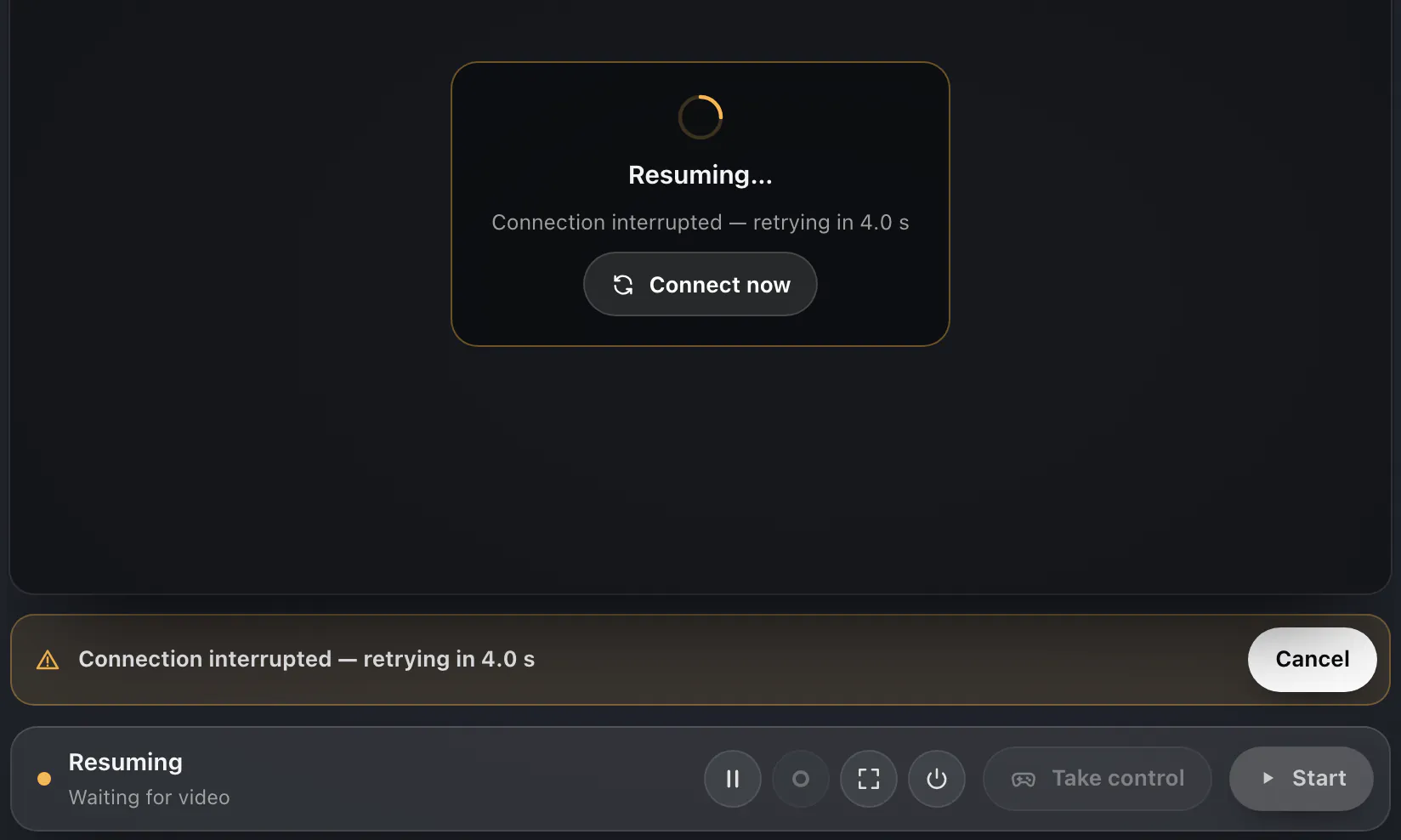
The app is reconnecting by itself. The line says what it is doing, for example Connection interrupted — retrying in 4.0 s.
Skips the wait before the next try.
Stops reconnecting, like Disconnect. Nothing resumes.
Works while it waits too: the bot then doesn't carry on until you press ▶ Resume.
The gear at the top right. Changes save by themselves.
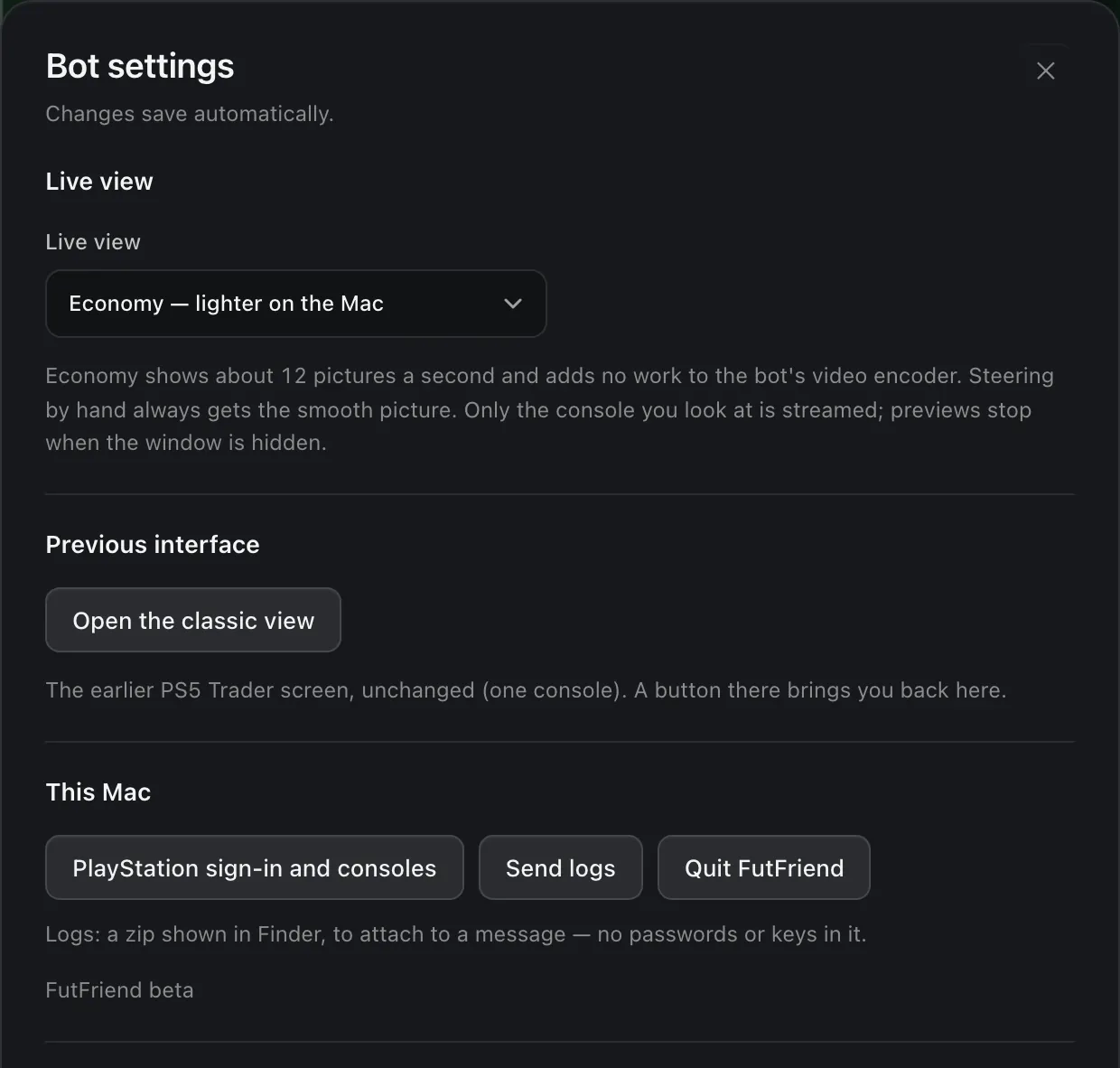
Economy — lighter on the Mac shows about 12 pictures a second and spares the computer; Smooth shows more. Steering by hand always gets the smooth picture.
The older one-console screen. A button there brings you back. You won't need it.
The first-start setup again: sign in, use another account, pair a PS5. On Windows the section is called This PC.
Saves the app's logs as a zip on your Desktop (shown in Finder or Explorer), to attach to a bug report. No passwords, tokens or console keys inside.
Closes the app and lets the console go.
| Phone | Pairing for the phone app, which is coming soon. See Phone app. |
|---|---|
| Log | The newest events of the console: connected, matches started, goals, results, trading started and stopped, sales. Show more lists the last 14. |
| Prices and updates | How often the bot takes a new FUT.GG price, and the oldest FUT.GG price it still accepts. A fixed purchase limit is never changed. |
| Single-player series | For player lists: how many searches a card gets before the bot moves on (a random number from the range). |
| Work and breaks | Trading works in stretches (for example 8 to 12 minutes) with rests between them (2 to 5 minutes), plus a pause of a few seconds every 30 to 80 searches. The session time includes the breaks. |
| Transfer list | How often the bot checks the transfer list to record sales and clear sold cards (every 3 to 5 minutes). |
| Sale settings | How much lower the auction's start price is than Buy Now, by price range; the minimum profit and an extra margin. These two can rule out a purchase that fits your limit. |
| Demonstration recording | Record your own match for training the bot (the same as ○ in the bar), stop it, and Save for upload. |
| Diagnostics and service tools | For checking the market reading and the search. Not needed for normal use. |
The FutFriend phone app for iPhone and Android is coming soon. It will be a remote for the app on your computer.
The most common messages, word for word as the app shows them, and what they mean.
| Message | What it means |
|---|---|
| Disconnected · choose a console | Nothing is streaming. Choose the console and click Connect. |
| Connecting through PSN — this can take about a minute… | The PS5 isn't on the same network, so FutFriend connects over the internet. |
| Waking the PS5… | The console was in rest mode. |
| Connected · waiting for video | Connected; the picture is starting. |
| Live · controls available | Streaming. The bot can work. |
| The PS5 asks for the profile sign-in code | Enter your PS5 passcode on the keypad. |
| Code rejected — check the profile code | Wrong passcode. Try again. |
| Connection interrupted — retrying in 4.0 s | The stream dropped. The app reconnects by itself. |
| No fresh frames | The picture froze for a moment. The app reconnects by itself. |
| Could not wake the PS5. Check the rest mode settings. | Turn on Stay Connected to the Internet and Enable Turning On PS5 from Network on the PS5 (setup guide). |
| Console in rest mode · click Connect to wake it | The PS5 sleeps. Connect or Wake wakes it. |
| The console ended the connection · click Connect | The PS5 closed the session, for example because another device started Remote Play. |
| Lost contact with the app service | The window lost the app's background service. FutFriend opens it again by itself; if it doesn't come back, reopen the app. |
| Message | What it means |
|---|---|
| Paused · Squad Battles / Paused · Draft / Paused · Trading | Pause is on. ▶ Resume carries on. |
| Paused · the bot let go of the pad — the match goes on | The bot isn't pressing anything; the match plays on. |
| Paused by the user | Trading is paused. |
| Connection lost — Trading resumes once the console is back | Auto-resume is waiting for the console (also for play). |
| Resuming · Squad Battles | The bot is finding its way back, after ▶ Resume or a dropped connection. |
| The PS5 went to rest mode by itself — waking it to go on | The console fell asleep while the bot worked. The app wakes it and carries on. |
| Message | What it means |
|---|---|
| Ready · Squad Battles · Semi-Pro | Ready. Click ▶ Play. |
| Going to Squad Battles | On its way through the menus. |
| Playing Squad Battles · Semi-Pro | In a match. |
| Reading the result and points | After full time. |
| Picking an unplayed opponent | Choosing the next Squad Battles opponent. |
| Stopping the game… | Stop was pressed; the match is being paused. |
| Done · 3 matches played | The set number of matches is done. |
| Manual control took over | You pressed a button yourself; the bot stopped. |
| This console is trading · Stop trading to play here | Trading runs on this console. Stop it first. |
| Message | What it means |
|---|---|
| Ready, press Start | A card is chosen. Click ▶ Start. |
| Choose a card in the FUT.GG catalog | No card yet: search and use Catalog. |
| Going to the transfer market | On its way to the market. |
| Searching for the card up to 11000 coins | Searching with your limit. |
| Card bought — waiting to list it | A purchase went through; listing comes next. |
| Card listed — searching on for the same player | On sale; the search goes on. |
| Break — resumes by itself | A planned rest between stretches of work. |
| The FUT.GG price is out of date — search stopped | Waiting for a fresh FUT.GG price. |
| The session time is up | The session has ended. |
| Stopped by you | You clicked Stop. |
Please don't leave FutFriend unattended yet, and don't run it 24/7. Watch what the bot does, start with a few matches or a short trading session, and report every bug you see.
While the bot plays, don't load your computer with heavy work like games, video editing or big downloads: the bot reads the PS5 picture live and needs the processor to keep up.
Use ☾ Put the console to sleep: it closes FC 27 first, then puts the PS5 into rest mode, so the game starts clean after waking. A paused Squad Battles or Draft match keeps FC open so it can be finished.
The bot plays with its own pad. Keep your controller off while it plays, or leave it in the middle on Select Sides.
Pause hands you the game and the bot carries on after Resume. Stop ends the run; matches are paused, never quit.
Closing FutFriend stops the bot and lets the console go.
Found a bug? Settings › This Mac (This PC on Windows) › Send logs, then attach the zip to a bug report. Thank you: that's how the beta gets better.